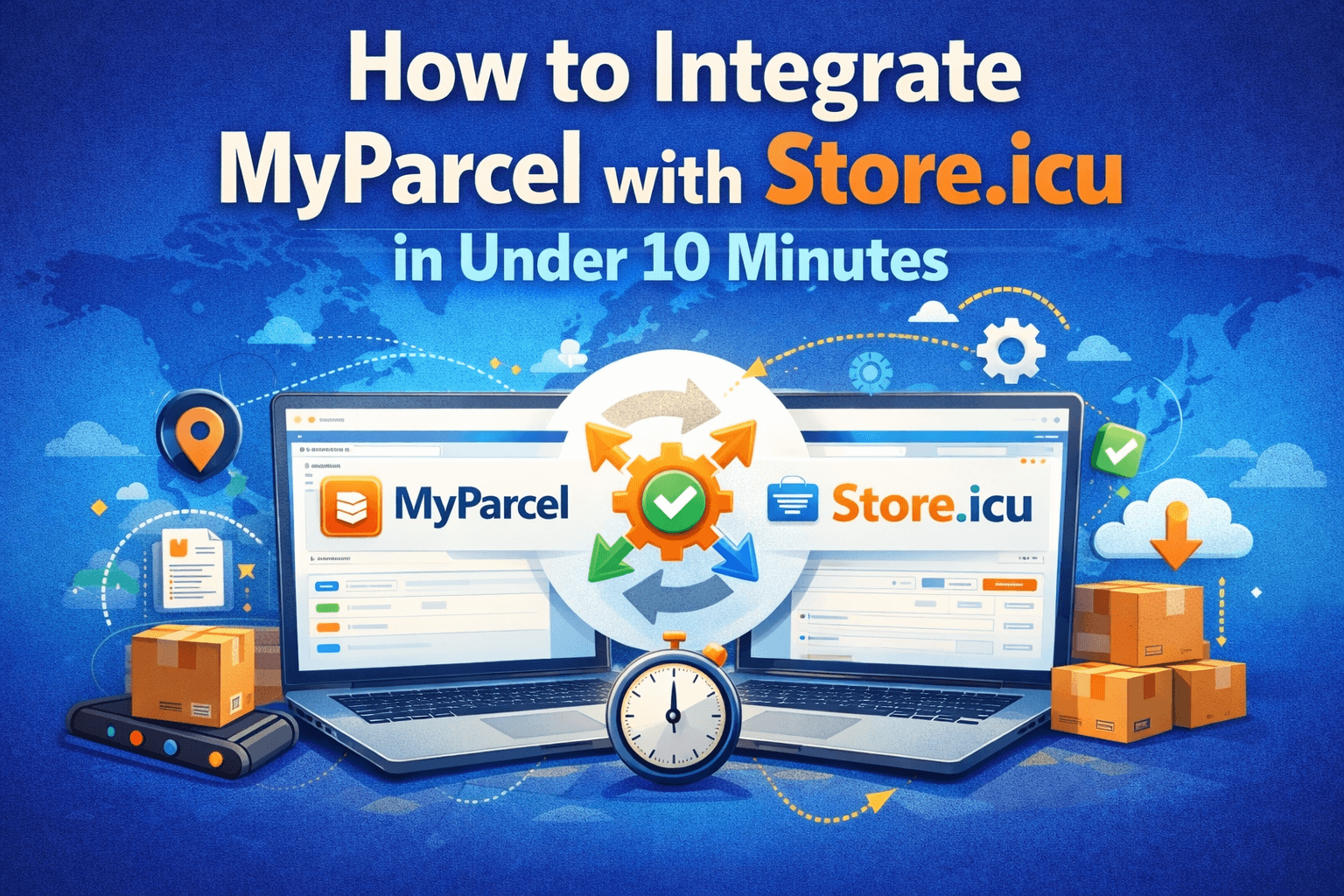
Want to offer professional shipping options to your customers without the complexity of managing multiple carriers? Integrating MyParcel with your Store.icu eCommerce store is the fastest way to streamline your shipping operations—and it takes less than 10 minutes to set up.
⏱️ Time Required: 10 minutes or less
💡 Skill Level: Beginner-friendly (no technical knowledge required)
Why Integrate MyParcel with Store.icu?
Before we dive into the how-to, let’s quickly cover why this integration is a game-changer for your online business:
- One-click label generation: Create shipping labels directly from your Store.icu dashboard
- Automatic order sync: Orders flow seamlessly from your store to MyParcel
- Multiple carriers, one interface: Access PostNL, DHL, and DPD through a single integration
- Real-time tracking: Customers automatically receive tracking updates
- Professional appearance: Branded tracking pages that match your store’s look
- Reduced errors: No manual data entry means fewer shipping mistakes
- Time savings: What used to take 30 minutes per day now takes 2 minutes
What You’ll Need Before Starting
Make sure you have the following ready before beginning the integration:
✓ Prerequisites Checklist:
- ✅ Active Store.icu account with admin access
- ✅ MyParcel account (free to create—we’ll show you how)
- ✅ Business information (company name, address, contact details)
- ✅ 10 minutes of uninterrupted time
Step 1: Create Your MyParcel Account (3 minutes)
If you don’t already have a MyParcel account, here’s how to create one:
- Visit backoffice.myparcel.nl/registration
- Click on “Sign Up” or “Create Account”
- Fill in your business information:
- Company name
- Business address
- Contact email
- Phone number
- Chamber of Commerce number (if applicable)
- Verify your email address by clicking the link sent to your inbox
- Complete your business profile in the MyParcel dashboard
💡 Pro Tip: Use the same business email for both Store.icu and MyParcel to keep everything organized in one inbox.
Step 2: Get Your MyParcel API Key (2 minutes)
Your API key is what connects Store.icu to MyParcel. Here’s how to find it:
- Log in to your MyParcel dashboard
- Navigate to Settings → Shop Settings → General
- Scroll down to the “API Keys” section
- Click “Generate API Key” if you don’t see one already
- Copy the API key (it will look something like:
a1b2c3d4e5f6g7h8i9j0k1l2m3n4o5p6) - Store this key somewhere safe—you’ll need it in the next step
⚠️ Important: Keep your API key confidential. Never share it publicly or include it in client-side code. Anyone with your API key can access your MyParcel account.
Step 3: Connect MyParcel to Store.icu (3 minutes)
Now for the exciting part—connecting everything together:
- Log in to your Store.icu admin dashboard
- Navigate to Settings → Shipping in the left sidebar
- Scroll down and click “Add Shipping Method”
- From the list of available shipping providers, select “MyParcel”
- In the configuration screen:
- Paste your MyParcel API key into the “API Key” field
- Toggle the switch to “Enable” the shipping method
- Click “Submit” or “Save Changes”
- You should see a success message confirming the connection
✅ Success! Your Store.icu store is now connected to MyParcel. Let’s configure your shipping options.
Step 4: Configure Your Shipping Options (2 minutes)
Now you need to set up which shipping options you want to offer your customers:
Basic Configuration:
- In the MyParcel settings page within Store.icu, you’ll see options for:
- Standard Delivery: Regular delivery to the customer’s address
- Evening Delivery: Delivery between 6 PM – 10 PM
- Morning Delivery: Delivery before 12 PM
- Pickup Points: Allow customers to collect from PostNL or DHL locations
- Letterbox Delivery: For small items that fit through a mailbox
- Toggle on the delivery options you want to offer
- Set your shipping rates for each option (or enable free shipping)
- Configure any weight or size restrictions
- Click “Save Settings”
Advanced Configuration (Optional):
- Insurance: Add automatic insurance for shipments over a certain value
- Signature Required: Require signatures for deliveries
- Age Verification: For age-restricted products (18+ or 21+)
- Return Address: Set your default return address
- Customs Information: For international shipments
Step 5: Customize Your Tracking Page (Optional but Recommended)
Make your shipping experience on-brand with a customized tracking page:
- In your MyParcel dashboard, go to Settings → Track & Trace
- Upload your company logo
- Choose your brand colors
- Add a custom message for your customers
- Include links to your customer service or FAQ pages
- Preview and save your changes
💡 Branding Tip: A branded tracking page builds trust and keeps customers engaged with your brand throughout the delivery process.
Testing Your Integration
Before going live, it’s smart to test everything:
Create a Test Order:
- Create a test product in your Store.icu store
- Place a test order using a real address (your own address works fine)
- Go to Orders in your Store.icu dashboard
- Select the test order
- Look for the “Create Shipping Label” or “MyParcel” button
- Click it to generate a test label
- Verify that:
- The label generates successfully
- The address is correct
- The tracking number appears in the order
- The customer receives a tracking email (if enabled)
💡 Testing Note: Some MyParcel accounts include a few free test labels. If not, you can test without actually shipping by selecting “test mode” in your MyParcel settings.
Your First Real Shipment
Ready to ship your first order? Here’s the workflow:
- Customer places an order on your Store.icu store
- You receive an order notification (email/dashboard)
- Navigate to Orders → View Order
- Click “Create Shipping Label”
- Review the shipment details
- Select any additional services (insurance, signature, etc.)
- Click “Generate Label”
- Print the label or download the PDF
- Attach the label to your package
- Drop off at a PostNL, DHL, or DPD location
- Customer automatically receives tracking updates
That’s it! Your order is on its way, and everything is tracked automatically.
Bulk Shipping for Multiple Orders
Shipping multiple orders at once? MyParcel integration makes it easy:
- Go to your Orders page in Store.icu
- Select multiple orders using checkboxes
- Click “Bulk Actions” or “Create Shipping Labels”
- MyParcel generates labels for all selected orders at once
- Download a single PDF with all labels
- Print and attach to packages
⚡ Time Saver: Bulk processing can save you 20-30 minutes per day if you’re shipping 10+ orders daily.
Common Issues and Troubleshooting
Issue 1: “API Key Invalid” Error
Solution:
- Double-check that you copied the entire API key (no extra spaces)
- Verify the API key is still active in your MyParcel dashboard
- Make sure you’re using the correct API key (not a test key if you’re in production)
- Try regenerating the API key in MyParcel and updating it in Store.icu
Issue 2: Orders Not Syncing
Solution:
- Verify the integration is enabled (toggle switch is ON)
- Check if your Store.icu plan includes shipping integrations
- Clear your browser cache and refresh the page
- Contact Store.icu support to verify the integration is active
Issue 3: Incorrect Shipping Rates Displayed
Solution:
- Review your shipping zone settings in Store.icu
- Verify product weights are set correctly
- Check your MyParcel rate card for accurate pricing
- Ensure shipping rules aren’t conflicting
Issue 4: Can’t Generate Labels
Solution:
- Confirm your MyParcel account has available credit or payment method
- Verify the shipping address is complete and valid
- Check that the selected shipping method is available for the destination
- Ensure package weight and dimensions are within carrier limits
Pro Tips for Maximum Efficiency
1. Set Up Automatic Fulfillment Rules
Configure Store.icu to automatically mark orders as fulfilled when labels are generated. This keeps your inventory accurate and triggers customer notifications.
2. Use Shipping Presets
Create presets in MyParcel for your most common package sizes. This speeds up label generation for repeat shipments.
3. Enable Email Notifications
Turn on automatic tracking emails in MyParcel settings. Customers love staying informed, and it reduces “where’s my order?” inquiries.
4. Offer Multiple Delivery Options
Give customers choices (standard, evening, pickup point). Studies show offering options increases conversion rates by up to 15%.
5. Set Up Return Labels
Configure automatic return labels in MyParcel. Include them in shipments to make returns hassle-free for customers.
6. Monitor Your Shipping Analytics
Check your MyParcel dashboard weekly to track shipping costs, delivery performance, and identify optimization opportunities.
Advanced Features to Explore
Once you’re comfortable with the basics, explore these advanced features:
- Multi-colli Shipments: Ship multiple packages for a single order
- International Customs: Automated customs documentation for global shipping
- Webhook Integration: Real-time status updates pushed to your store
- Rate Shopping: Automatically select the cheapest carrier for each shipment
- Drop Shipping: Ship directly from suppliers with custom labels
- Scheduled Pickup: Have carriers collect packages from your location
Cost Optimization Tips
Get the most value from your MyParcel integration:
- Choose the right service level: Not every order needs express shipping
- Use letterbox delivery when possible: Significantly cheaper for small items
- Batch your shipments: Daily pickups are more efficient than multiple trips
- Right-size your packaging: Dimensional weight can increase costs
- Leverage pickup points: Often 30-40% cheaper than home delivery
- Monitor your shipping zones: Adjust rates by region to maintain margins
Scaling Your Shipping Operations
As your business grows, MyParcel + Store.icu scales with you:
From 10 to 100 Orders/Day:
- Use bulk label generation
- Set up automated fulfillment workflows
- Consider a label printer (saves time vs. regular printing)
From 100 to 1,000 Orders/Day:
- Integrate with warehouse management software
- Use MyParcel’s API for custom automation
- Negotiate volume discounts with carriers through MyParcel
- Implement quality control checkpoints
1,000+ Orders/Day:
- Consider dedicated fulfillment software
- Explore MyParcel’s enterprise features
- Set up multiple shipping locations
- Implement advanced analytics and reporting
Success Metrics to Track
Monitor these KPIs to optimize your shipping performance:
| Metric | Target | How to Improve |
|---|---|---|
| On-Time Delivery Rate | >95% | Choose reliable carriers, ship same-day |
| Average Shipping Cost | <€6 per order | Optimize packaging, use letterbox when possible |
| Time to Ship | <24 hours | Streamline picking/packing, use bulk processing |
| Customer Tracking Usage | >60% | Send proactive tracking emails, brand tracking page |
| Shipping Error Rate | <1% | Use automation, implement QC checks |
Getting Help and Support
If you run into issues during or after integration:
Store.icu Support:
- Documentation: onlinestore.support/docs
- Support Portal: Submit a ticket through your Store.icu dashboard
- Live Chat: Available in your admin panel during business hours
MyParcel Support:
- Help Center: support.myparcel.nl
- Email: support@myparcel.nl
- Phone: Available for account holders (check your dashboard)
Conclusion: You’re Ready to Ship!
Congratulations! You’ve successfully integrated MyParcel with your Store.icu eCommerce store. What used to be a time-consuming, error-prone process is now streamlined, automated, and professional.
✅ What You’ve Accomplished:
- ✅ Connected MyParcel to your Store.icu store
- ✅ Configured shipping options for your customers
- ✅ Set up branded tracking pages
- ✅ Tested the integration
- ✅ Learned how to process orders efficiently
- ✅ Discovered optimization tips and best practices
The integration you completed today will save you hours every week and provide a better experience for your customers. As your business grows, the MyParcel + Store.icu combination will scale effortlessly with you.
Ready to Launch Your Store?
Create a professional eCommerce store with MyParcel shipping built-in.
Next Steps:
- 📦 Download our shipping optimization checklist
- 📊 Read: MyParcel vs Traditional Shipping comparison
- 💬 Join our community of eCommerce entrepreneurs